
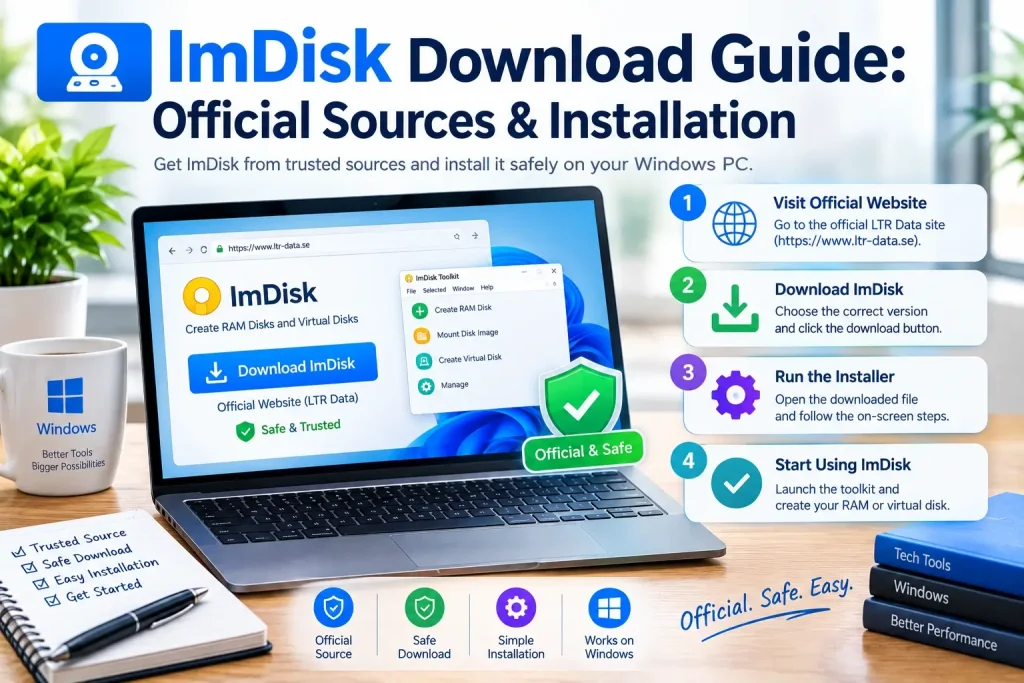
If you are looking for a safe ImDisk download, the most important thing is to use a trusted source and understand which package you actually need.
ImDisk exists in more than one form. There is the core ImDisk Virtual Disk Driver, the separate ImDisk Toolkit, source code on GitHub, installer packages, ZIP archives, and third-party mirrors. That can make the download process confusing, especially for new users.
This guide explains where to download ImDisk, how to identify the current version, the difference between the core driver and Toolkit, which installation option to choose, and what to check before installing it on Windows.
Where Should You Download ImDisk?
For the core ImDisk Virtual Disk Driver, the safest starting point is the original LTR Data project website.
The official LTRData GitHub repository is useful for source code, project files, technical documentation, and development history.
If you specifically want ImDisk Toolkit, use its established SourceForge project page rather than assuming the Toolkit is the same download as the core driver.
In short:
- Core ImDisk driver: LTR Data
- ImDisk source code: LTRData GitHub
- ImDisk Toolkit: SourceForge
Avoid unknown repackaged installers when an original project source is available.
What Is ImDisk Virtual Disk Driver?
ImDisk Virtual Disk Driver is a Windows storage driver that can create virtual drives backed by:
- disk image files,
- system memory,
- or redirected I/O.
It can be used to create RAM disks, mount image files, assign drive letters, and manage virtual volumes through both graphical tools and the imdisk.exe command-line utility.
The core package includes important components such as:
imdisk.sys— kernel driverimdisk.exe— command-line utilityimdisk.cpl— Control Panel interfaceimdsksvc.exe— supporting service- installation files such as
imdisk.inf
This is the package most users mean when they search for ImDisk Virtual Disk Driver download.
What Is the Latest ImDisk Version?
The official project should always be your reference point for the current release.
As of 2026, the core ImDisk project has a 2.1.2 release listed by the original developer.
Because software versions can change, users should always verify the version number on the official project page before downloading.
Do not rely only on a third-party software directory because it may show:
- an older version,
- a delayed mirror,
- a repackaged installer,
- or outdated release information.
For SEO and user trust, your site should always phrase version information like this:
“Check the official LTR Data page for the current ImDisk release before downloading.”
That keeps the information accurate even when a new version appears.
Official ImDisk Download Sources
1. LTR Data Official Website
The original LTR Data website is the primary source for the core ImDisk Virtual Disk Driver.
This is the best place to look for:
- the current release,
- installer files,
- ZIP packages,
- technical notes,
- changelog information,
- and official project guidance.
For most users, this should be the first download source.
2. Official LTRData GitHub Repository
The LTRData GitHub repository is the official source-code repository for the core ImDisk project.
GitHub is useful if you want to:
- inspect the source code,
- view driver files,
- study project history,
- review technical documentation,
- examine installation files,
- or build the project yourself.
For ordinary users, GitHub is usually more useful as a verification and source-code reference than as the simplest way to install ImDisk.
3. ImDisk Toolkit on SourceForge
ImDisk Toolkit is a separate project.
If you want the Toolkit rather than the core driver, use its SourceForge project page.
The Toolkit historically provides easier graphical tools for:
- creating RAM disks,
- mounting disk images,
- configuring startup behavior,
- and managing virtual storage.
The SourceForge project is also useful for archived versions and project documentation.
ImDisk Driver vs ImDisk Toolkit Download
These downloads are related, but they are not the same.
| Download | What It Is | Best For |
|---|---|---|
| ImDisk Virtual Disk Driver | Core driver and utilities | Direct driver use, CLI, scripts |
| ImDisk Toolkit | GUI tools built around ImDisk | Easier RAM disk and image mounting |
| GitHub source | Project source code | Developers and technical review |
| ZIP package | Manual/portable installation files | Advanced users |
| Installer package | Guided setup | Most users |
If you only need the core driver, do not assume you need Toolkit.
If you want a friendlier RAM disk interface, Toolkit may be more convenient.
Which ImDisk Download Should You Choose?
For most users, the normal installer is the easiest option.
Choose the installer package if:
- you are installing ImDisk for the first time,
- you want Windows integration,
- you want the Control Panel interface,
- and you prefer a guided setup.
Choose the ZIP package if:
- you are an advanced user,
- you want to inspect files manually,
- you are following INF-based installation steps,
- or you need more control over deployment.
Choose the GitHub repository if:
- you need source code,
- you want to build ImDisk,
- or you want to review project internals.
Is ImDisk Free?
Yes. The core ImDisk project is open source.
That means the source code is publicly available, and users can inspect the project files.
However, “free” does not mean every download page is equally trustworthy.
A third-party site may still:
- wrap the installer,
- include extra software,
- serve an outdated package,
- or add advertising around the download process.
Always prefer the original project source.
Is ImDisk Safe to Download?
The legitimate ImDisk project is generally safe when downloaded from a trusted source.
The bigger risk is downloading the wrong file from an unofficial mirror.
Before installing, check:
- the source website,
- version number,
- file name,
- publisher,
- digital signature where available,
- antivirus scan results,
- and whether the package matches your Windows version.
Because ImDisk includes a kernel driver, it deserves more care than a normal portable utility.
Should You Download ImDisk From Softpedia, LO4D, Softonic, or Similar Sites?
Third-party software directories may host legitimate copies, but they should not be your first choice when the original source is available.
Potential problems include:
- outdated versions,
- repackaged installers,
- download wrappers,
- misleading buttons,
- or missing technical context.
A safer order is:
- official LTR Data site,
- official LTRData GitHub,
- SourceForge for Toolkit,
- third-party mirrors only if necessary.
How to Verify an ImDisk Download
Before installation, use this checklist.
Check the Domain
Make sure you are on the real project source.
Check the Version
Compare the downloaded version with the version listed by the official project.
Scan the File
Use Windows Security or another trusted antivirus scanner.
Check File Properties
Right-click the installer or driver package and review:
Properties → Digital Signatures
if available.
Avoid Download Managers
If a third-party site forces its own download manager, consider using the original source instead.
Keep the Original Archive
It can be useful to keep the untouched installer or ZIP file until installation is confirmed.
ImDisk Download for Windows 11
ImDisk can still work for some Windows 11 tasks, but users should understand its compatibility limits.
The project uses a legacy virtual-volume architecture, and some modern applications expect full physical-disk behavior.
Before installing on Windows 11:
- use the current core driver,
- test with a small virtual disk,
- avoid relying on it immediately for critical workflows,
- and check whether your application requires full-disk emulation.
Windows 11 24H2 also has documented limitations affecting certain elevated executables on ImDisk volumes.
If that matters to your workflow, a more modern alternative may be better.
ImDisk Download for Windows 10
Windows 10 is one of the better-known environments for ImDisk use.
The core driver has historically been used for:
- RAM disks,
- image mounting,
- temporary storage,
- virtual drives,
- and scripting.
Download the correct architecture and test before using it with important data.
ImDisk Download for Windows 7
ImDisk also has a long history on Windows 7.
Users maintaining legacy systems may still use it for:
- virtual drives,
- RAM disks,
- image mounting,
- and older software workflows.
However, Windows 7 itself is no longer supported by Microsoft for normal consumer use, so general operating-system security should also be considered.
32-Bit vs 64-Bit ImDisk Downloads
One common download question is whether to choose 32-bit or 64-bit files.
Most modern Windows systems are 64-bit.
To check your system:
- Open Settings
- Go to System
- Open About
- Look for System type
You may see:
- 64-bit operating system
- 32-bit operating system
Choose the package that matches your Windows architecture when separate files are provided.
Do not guess.
ARM and ARM64 Considerations
Some Windows devices use ARM-based processors rather than traditional x86 or x64 CPUs.
ImDisk includes architecture-specific components in its project files, but ARM installation can require extra attention.
Before using ImDisk on ARM or ARM64:
- check the official project notes,
- confirm driver support,
- avoid assuming x64 instructions apply,
- and test on non-critical systems.
This is especially important on newer Windows hardware.
Installer vs ZIP Package
Both can contain the same core software, but they serve different users.
Installer Package
Best for:
- beginners,
- normal Windows installation,
- automatic integration,
- Control Panel setup,
- Explorer context-menu integration.
ZIP Package
Best for:
- advanced users,
- manual installation,
- deployment,
- custom scripting,
- examining the package contents.
If you do not have a specific reason to use the ZIP archive, the installer is usually easier.
How to Install ImDisk With the Installer
A typical installation process looks like this:
- Download ImDisk from the official project source.
- Save the installer locally.
- Close important programs.
- Run the installer with administrative rights if required.
- Allow Windows to install the driver.
- Complete setup.
- Restart Windows if needed.
- Open the ImDisk Control Panel or Command Prompt.
- Create a small test drive.
Testing first is important.
Do not immediately move important data or system folders to a new virtual drive.
How to Install ImDisk From the INF File
Advanced users can install the driver manually using the installation definition file.
The project includes imdisk.inf.
A common method is:
- Extract the package.
- Locate
imdisk.inf. - Right-click it.
- Choose Install.
- Allow Windows to install the driver.
- Restart if required.
This method is useful when working with the raw project package rather than the normal installer.
How to Check Whether ImDisk Installed Correctly
After installation, confirm that the software is working.
Open Command Prompt and run:
imdiskIf the command displays ImDisk syntax/help information, the command-line utility is accessible.
You can also create a small test disk:
imdisk -a -s 512M -m R:Then format it:
format R: /fs:ntfs /qIf R: appears in File Explorer, the core functionality is working.
Remove it when finished:
imdisk -D -m R:What Does the ImDisk Installer Add?
Depending on the package and configuration, installation can add:
- the kernel driver,
- the
imdisk.execommand-line utility, - Control Panel integration,
- helper services,
- Explorer context-menu options,
- device-management components,
- and installation metadata.
One Explorer option may appear as:
Mount as ImDisk Virtual Disk
This allows users to mount compatible image files without manually typing commands.
Do You Need to Restart Windows After Installing ImDisk?
Sometimes installation may work without a full restart, but rebooting can help ensure:
- the driver is fully loaded,
- services start correctly,
- Explorer integration appears,
- and old driver instances are cleared.
If ImDisk does not work immediately after installation, restarting Windows is a sensible first troubleshooting step.
How to Update ImDisk
When a newer core version is released:
- back up important data,
- unmount active ImDisk volumes,
- close applications using ImDisk,
- download the new package from the official source,
- install or replace the driver as directed,
- restart Windows if needed,
- test with a small virtual disk.
Do not update a storage driver while critical virtual volumes are actively being used unless the project specifically supports that workflow.
Should You Uninstall an Old Version First?
That depends on the installer and update path.
For simple updates, the new package may replace existing components.
If you experience:
- driver conflicts,
- duplicate entries,
- failed installation,
- or mixed version files,
a clean uninstall followed by a fresh install may be better.
Always close and unmount virtual drives before removing the driver.
How to Uninstall ImDisk
A safe uninstall process is:
- close files stored on ImDisk volumes,
- remove or unmount all virtual disks,
- stop using RAM disks,
- use the normal Windows uninstall method or project instructions,
- restart Windows.
Do not remove driver files manually while they are still in use.
ImDisk Download vs ImDisk Toolkit Download
This is one of the most common areas of confusion.
If you search:
imdisk download
you are usually looking for the core driver.
If you search:
imdisk toolkit download
you are looking for the separate Toolkit project.
They have different:
- maintainers,
- release histories,
- interfaces,
- and project status.
The Toolkit should not be described as the newest version of ImDisk itself.
Is ImDisk Toolkit Still Active?
The Toolkit project is currently listed as inactive on SourceForge.
That does not mean it cannot work.
It means users should be more careful about:
- Windows 11 compatibility,
- age of the package,
- known issues,
- and whether a newer tool would be more appropriate.
The core ImDisk driver has a separate development history.
ImDisk GitHub Download vs Official Installer
GitHub is excellent for source code and technical transparency.
But for normal users, the official installer is usually easier.
Choose GitHub when you need:
- source code,
- build files,
- technical review,
- development history.
Choose the official installer when you simply want to install and use ImDisk.
What Should You Avoid When Downloading ImDisk?
Avoid:
- random file-sharing sites,
- unknown “cracked” versions,
- custom download managers,
- packages that ask you to disable antivirus,
- installers with unrelated bundled software,
- outdated driver archives from unknown sources,
- and unofficial builds with no clear maintainer.
For a kernel driver, download trust matters.
Common ImDisk Download Problems
Download Link Does Not Work
The project may have moved or updated the release path.
Return to the official project homepage rather than searching random mirrors.
Browser Blocks the File
Check whether the browser is warning about a rare executable or an actual security issue.
Verify the official source before bypassing any warning.
Antivirus Flags the Package
Do not immediately disable antivirus.
Verify the file source, version, hash, and digital signature.
Installer Does Not Start
Try:
- running as Administrator,
- checking Windows architecture,
- restarting Windows,
- downloading the package again,
- and confirming the file is not corrupted.
Driver Installation Fails
Check:
- Windows version,
- architecture,
- driver signing,
- existing old ImDisk components,
- security software,
- and administrative permissions.
Best Practices Before Installing ImDisk
Follow these steps:
- Download from the original project.
- Check the release version.
- Scan the file.
- Back up important data.
- Close important applications.
- Unmount old virtual disks.
- Confirm your Windows architecture.
- Read compatibility notes.
- Install with administrator privileges if required.
- Test with a small non-critical virtual disk first.
Frequently Asked Questions
Where can I download ImDisk?
The best source for the core driver is the original LTR Data project page. The official LTRData GitHub repository is the main source-code repository.
What is the latest ImDisk version?
As of 2026, the core project lists version 2.1.2. Always confirm the current release on the official project page before downloading.
Is ImDisk free?
Yes. The core project is open source.
Is ImDisk safe to download?
Yes, when downloaded from a trusted project source. Avoid unknown repackaged installers and outdated mirrors.
What is the difference between ImDisk and ImDisk Toolkit?
ImDisk is the core virtual disk driver. ImDisk Toolkit is a separate set of graphical tools built around ImDisk.
Where can I download ImDisk Toolkit?
Use the established ImDisk Toolkit project on SourceForge.
Should I download ImDisk from GitHub?
GitHub is best for source code and technical files. Most normal users will find the official installer easier.
Does ImDisk work on Windows 11?
It can work for some tasks, but modern Windows compatibility limitations exist. Test your exact workflow before depending on it.
Does ImDisk work on Windows 10?
Yes, it has historically been used on Windows 10 for virtual disks, RAM disks, and image mounting.
Does ImDisk work on Windows 7?
Yes, ImDisk has long supported legacy Windows environments including Windows 7, although the operating system itself is now unsupported by Microsoft.
Do I need ImDisk Toolkit to use ImDisk?
No. The core driver works without Toolkit.
Can I install ImDisk from a ZIP file?
Yes. Advanced users can use the raw package and imdisk.inf installation method.
Should I use a third-party mirror?
Only if necessary. The original project source is safer and easier to verify.
Final Thoughts
A safe ImDisk download starts with choosing the right package from the right source.
For most users:
- use the LTR Data official page for the core ImDisk Virtual Disk Driver,
- use the LTRData GitHub repository for source code and project verification,
- use SourceForge if you specifically need ImDisk Toolkit,
- and avoid unknown repackaged installers.
The most important download rule is simple:
Prefer the original project source whenever possible.
Once installed, test ImDisk with a small virtual disk before using it for important workloads.
That gives you the best balance of safety, compatibility, and control.