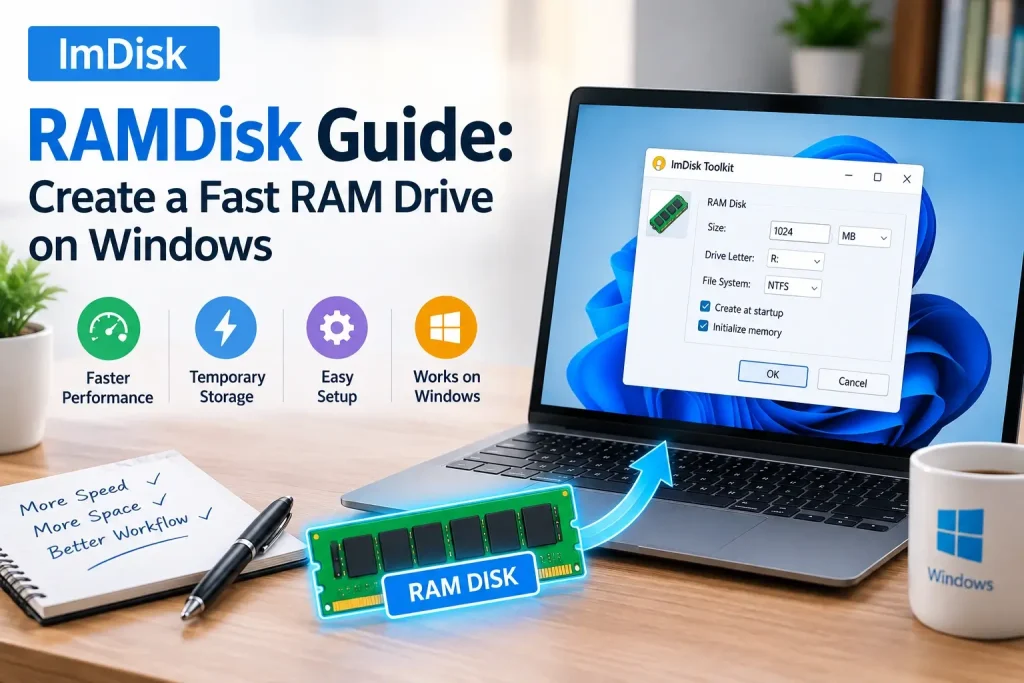
ImDisk can create a RAM disk, sometimes called a RAM drive or memory-backed disk, by using part of your computer’s system memory as temporary storage.
The result is a virtual drive that Windows can access through a normal drive letter such as R: or T:. Because the storage is backed by RAM instead of an SSD or hard drive, it can be extremely fast for certain workloads.
This guide explains how to create an ImDisk RAMDisk on Windows, how much memory to allocate, which file system to use, what a RAM disk is good for, what its limitations are, and how to avoid common mistakes.
What Is an ImDisk RAMDisk?
An ImDisk RAMDisk is a virtual disk that uses your computer’s physical memory as storage.
Instead of saving data directly to an SSD or hard drive, ImDisk creates a virtual volume in RAM and presents it to Windows like another drive.
For example, after creating a RAM disk, you may see:
R:\
inside File Explorer.
You can then use that drive for temporary files, caches, testing, build output, decompression, scratch data, and other workloads where speed matters more than persistence.
The most important difference is that RAM is volatile.
If the computer shuts down, restarts, crashes, or loses power, files stored only in the RAM disk are normally lost unless another process saves them to persistent storage.
Quick Answer: How Do You Create an ImDisk RAMDisk?
A basic ImDisk RAM disk can be created from an elevated Command Prompt with:
imdisk -a -s 2G -m R:This creates a 2 GB virtual disk and assigns it the drive letter R:.
You then format the drive, for example with NTFS:
format R: /fs:ntfs /qAfter that, Windows can use the RAM disk like a normal drive.
To remove it later:
imdisk -D -m R:That is the simplest command-line workflow.
How a RAM Disk Works
A normal storage drive saves data to persistent media.
A RAM disk does something different.
Part of system memory is reserved and presented as a storage volume.
That means the data path is approximately:
Windows application → file system → RAM disk → system memory
instead of:
Windows application → file system → storage controller → SSD/HDD
Because RAM has very low latency and very high throughput, temporary file operations can be faster.
However, RAM is also more limited and more expensive than regular storage, and it does not normally retain data after power loss.
Why Use an ImDisk RAMDisk?
A RAM disk can be useful when your workload involves a large number of temporary reads and writes.
Common uses include:
- temporary build files,
- software compilation output,
- disposable test data,
- browser or application caches,
- temporary extraction folders,
- scratch space,
- image or video processing intermediates,
- benchmark testing,
- development environments,
- repeated access to short-lived files.
The key phrase is temporary data.
A RAM disk is most useful when the files can be recreated easily and do not need to survive a restart.
When a RAM Disk Is Not a Good Idea
A RAM disk is not automatically better than an SSD.
Modern NVMe SSDs are already very fast, and using too much RAM for a virtual drive can reduce the memory available to Windows and your applications.
Avoid using a RAM disk when:
- your computer has limited memory,
- the files must survive reboot,
- the application already caches heavily in RAM,
- the workload is not storage-bound,
- the data is important and irreplaceable,
- or the RAM disk would force Windows to use the page file more aggressively.
In some cases, creating a large RAM disk can actually hurt overall performance because the operating system has less memory available for normal caching and applications.
How Much RAM Should You Allocate?
The right RAM disk size depends on your total memory and workload.
There is no universal best size.
A simple starting point might be:
| Installed RAM | Conservative RAM Disk Size |
|---|---|
| 8 GB | 256 MB to 1 GB |
| 16 GB | 1 GB to 4 GB |
| 32 GB | 2 GB to 8 GB |
| 64 GB+ | Depends heavily on workload |
These are not hard rules.
You should leave enough RAM for Windows, background services, browsers, games, development tools, and any other applications you use.
If Windows starts paging heavily because too much memory is reserved for the RAM disk, you may lose the performance benefit.
How to Create an ImDisk RAMDisk With Command Prompt
Open Command Prompt as Administrator.
Then run:
imdisk -a -s 2G -m R:This command means:
| Option | Meaning |
|---|---|
-a | Add a new virtual disk |
-s 2G | Set the size to 2 GB |
-m R: | Assign drive letter R: |
After creation, format the disk:
format R: /fs:ntfs /qOnce formatting is complete, open File Explorer and look for drive R:.
You can now use it like another storage volume.
How to Create a Larger RAM Disk
To create a 4 GB RAM disk:
imdisk -a -s 4G -m R:For 8 GB:
imdisk -a -s 8G -m R:The same principle applies to other sizes.
Make sure the size makes sense for your installed memory before creating the drive.
How to Create an ImDisk RAMDisk With a GUI
If you prefer not to use commands, ImDisk and related Toolkit utilities can provide graphical controls.
A typical graphical workflow is:
- Open the ImDisk or RAM disk configuration interface.
- Choose the size of the RAM disk.
- Select a drive letter.
- Choose whether the disk should be formatted.
- Select a file system.
- Create the virtual disk.
- Open File Explorer and confirm that the new drive appears.
The graphical method is easier for beginners because you can see the available options before applying them.
Which File System Should You Use?
A new RAM disk usually needs a file system before Windows can store normal files on it.
The most common choices are NTFS and exFAT.
NTFS
NTFS is usually a good choice for Windows-only use.
It supports:
- permissions,
- large files,
- journaling,
- compression,
- and other standard Windows features.
Example:
format R: /fs:ntfs /qexFAT
exFAT may be useful when you want a simpler file system with broad compatibility and fewer NTFS-specific features.
For temporary Windows-only RAM disk workloads, NTFS is usually the easier default.
Should You Use NTFS Journaling on a RAM Disk?
For many temporary workloads, NTFS is still perfectly practical.
However, some users choose a simpler file system because a RAM disk is already temporary and may not need every feature of a persistent storage volume.
The best choice depends on:
- application requirements,
- file sizes,
- permissions,
- compatibility,
- and how the RAM disk is being used.
For general Windows use, NTFS remains a safe default.
How to Change the RAM Disk Drive Letter
You can choose any free drive letter.
For example:
imdisk -a -s 2G -m T:creates a 2 GB RAM disk at T:.
Other common choices include:
R: for RAMT: for temporaryV: for virtual
The letter itself does not affect performance.
Just avoid a letter already used by another local, removable, optical, or network drive.
How to Remove an ImDisk RAMDisk
When you no longer need the RAM disk, close any applications using it and run:
imdisk -D -m R:Replace R: with the correct drive letter.
Once removed, the memory is released back to Windows.
Remember that the files stored on the RAM disk are normally lost when the device is removed.
What Happens After Restart?
A standard RAM-backed disk does not normally preserve its contents after restart.
There are two separate issues:
- The RAM disk itself may need to be recreated after Windows starts.
- The data stored inside it is normally lost because RAM is volatile.
Some Toolkit configurations can automate RAM disk creation at startup and may support saving and restoring data, but this is different from a plain temporary RAM disk.
If you need persistence, you should understand exactly how the save/restore process works before relying on it.
Can You Make an ImDisk RAMDisk Persistent?
A RAM disk is inherently volatile, but software can simulate persistence by:
- saving the RAM disk contents to a file before shutdown,
- recreating the RAM disk at startup,
- restoring the saved contents.
This can be useful in some workflows, but it also reduces one of the main advantages of a simple RAM disk.
If you need permanent storage most of the time, a fast SSD may be the more practical option.
Can You Move TEMP and TMP to an ImDisk RAMDisk?
Yes, but this should be done carefully.
Some users move Windows or application temporary folders to a RAM disk to reduce disk writes and improve access speed.
However, this can create compatibility issues.
Some programs expect temporary files to survive longer than expected. Others may run elevated processes, installers, updates, or services that do not behave well with a RAM-backed temporary path.
Before moving system-wide TEMP or TMP folders:
- test with non-critical applications,
- make sure the RAM disk is created early enough at startup,
- understand what happens during reboot,
- check whether installers and update tools work correctly,
- and keep a way to restore the original TEMP path.
For most users, redirecting only specific application caches or disposable workloads is safer than changing the entire system temporary directory.
Can You Use a RAM Disk for Browser Cache?
Yes, technically, but the benefit may be smaller than expected.
Modern browsers already use memory aggressively and manage their own caches.
Using a RAM disk for browser cache can reduce persistent disk writes, but it may not create a noticeable speed improvement on a modern SSD.
It can still make sense if your goal is:
- temporary browsing data,
- reducing writes to persistent storage,
- automatically clearing cache after reboot,
- or experimenting with a controlled temporary environment.
Can You Use a RAM Disk for Games?
A RAM disk can load files very quickly, but using one for entire games is rarely practical.
Modern games can consume tens or hundreds of gigabytes, while RAM is limited and also needed by the operating system and the game itself.
A more realistic use is temporary shader caches, modding workspaces, extracted assets, or development/test data.
For normal game installation, a fast NVMe SSD is usually a better fit.
Can You Use a RAM Disk for Video Editing?
Yes, but only for specific temporary workloads.
A RAM disk can be useful for:
- scratch files,
- temporary renders,
- proxies,
- intermediate frames,
- and short-lived cache data.
However, video files can be extremely large.
You need enough system memory to support both the editing application and the RAM disk at the same time.
If the RAM disk forces the system into paging, performance may get worse instead of better.
Can You Use a RAM Disk for Compiling Code?
Yes. Development workloads are one of the better RAM disk use cases.
Build systems can generate many temporary files and perform a large number of small read/write operations.
A RAM-backed directory can sometimes reduce build time, especially when:
- the project is large,
- the storage device is slower,
- the build process is I/O-heavy,
- and the generated files do not need to persist.
However, many modern compilers and operating systems already make strong use of memory caching, so the actual benefit should be measured.
RAM Disk vs. SSD
A RAM disk can be much faster than an SSD in raw latency and throughput.
But faster does not always mean better.
| Feature | RAM Disk | SSD |
|---|---|---|
| Speed | Extremely high | High |
| Persistence | Usually no | Yes |
| Capacity | Limited by RAM | Usually much larger |
| Cost per GB | High | Lower |
| Survives reboot | No, unless saved/restored | Yes |
| Best for | Temporary workloads | General storage |
Use a RAM disk when you have a specific short-lived workload that benefits from low latency.
Use an SSD for normal applications, documents, games, and persistent data.
RAM Disk vs. Windows File Cache
This distinction matters.
Windows already uses available RAM as a file cache.
That means frequently accessed files may already be served from memory without needing a separate RAM disk.
In some workloads, manually creating a RAM disk simply reserves memory that Windows could have used more intelligently as cache.
A RAM disk is most useful when you specifically need:
- a separate drive letter,
- guaranteed in-memory storage,
- automatic data loss after reboot,
- an isolated temporary workspace,
- or an application that requires a filesystem path.
Does an ImDisk RAMDisk Wear Out RAM?
No.
RAM does not wear out from write cycles in the same way flash storage does.
One reason people sometimes use RAM disks is to reduce writes to SSDs.
However, modern SSD endurance is usually high enough that ordinary cache and temporary-file workloads are not a major concern for most users.
Reducing SSD writes can still be useful in specialized workloads, but it should not be the only reason to create a RAM disk.
Is an ImDisk RAMDisk Safe?
An ImDisk RAM disk is generally safe when used properly, but there are important risks to understand.
The main risk is data loss because the storage is volatile.
Other risks include:
- using too much system memory,
- application compatibility problems,
- losing unsaved files after restart,
- software expecting persistent paths,
- startup timing problems,
- and driver-related issues.
Always keep important files on persistent storage.
ImDisk RAMDisk on Windows 11
ImDisk can work for some RAM disk scenarios on Windows 11, but users should be aware of modern compatibility limitations.
The project uses an older virtual-volume architecture, and some current Windows applications expect full physical-disk behavior.
For simple temporary storage, basic RAM disk use may still work well.
For more complex modern Windows scenarios, test the exact application and workflow before relying on it.
ImDisk RAMDisk on Windows 10
Windows 10 is one of the operating systems historically associated with ImDisk use and testing.
Common Windows 10 RAM disk scenarios include:
- temporary files,
- development builds,
- scratch directories,
- testing,
- and image-processing workloads.
As always, leave enough memory for Windows and your applications.
ImDisk RAMDisk on Windows 7
ImDisk is also well known in older Windows environments.
On Windows 7, users commonly used RAM disks for:
- browser cache,
- temporary files,
- legacy applications,
- testing,
- and reducing physical disk access.
Older systems may have much less RAM than modern PCs, so allocation size matters even more.
Common ImDisk RAMDisk Problems
The RAM Disk Does Not Appear
Check whether:
- a drive letter was assigned,
- the selected letter is already in use,
- the ImDisk driver is installed,
- and the command was run with sufficient privileges.
Windows Says the Drive Must Be Formatted
This is normal for a newly created empty RAM disk.
Format it before use.
Example:
format R: /fs:ntfs /qFiles Disappear After Restart
This is expected for a volatile memory-backed disk unless you configured a save-and-restore system.
The Computer Becomes Slower
You may have allocated too much RAM.
Reduce the RAM disk size and leave more memory available to Windows.
Applications Fail When TEMP Is on the RAM Disk
Restore TEMP and TMP to persistent storage and test again.
Some applications do not behave well when system temporary paths are placed on volatile storage.
The RAM Disk Cannot Be Removed
Close all files and programs using the drive, then try:
imdisk -D -m R:Best Practices for Using an ImDisk RAMDisk
For a more reliable setup:
- Use only as much RAM as you actually need.
- Keep important files on persistent storage.
- Test with a small RAM disk first.
- Avoid moving system-wide folders immediately.
- Use a free drive letter.
- Close applications before removing the RAM disk.
- Do not assume faster storage always improves application performance.
- Benchmark your real workload instead of relying on theoretical speed.
- Keep enough memory available for Windows and applications.
- Understand whether the data must survive restart.
Frequently Asked Questions
What is an ImDisk RAMDisk?
An ImDisk RAMDisk is a virtual drive created in system memory. Windows can use it like a normal drive, but its data is usually temporary and disappears after restart or power loss.
How do I create a RAM disk in Windows with ImDisk?
Use:
imdisk -a -s 2G -m R:Then format the drive:
format R: /fs:ntfs /qIs a RAM disk faster than an SSD?
Yes, RAM typically has much lower latency and much higher throughput than SSD storage. However, real-world benefits depend on the workload.
Does an ImDisk RAM drive keep files after reboot?
Not by default. RAM is volatile, so files normally disappear after restart unless software saves and restores the contents.
How much RAM should I use for a RAM disk?
Use only the amount required by your workload while leaving enough memory for Windows and applications. A smaller test disk is a good starting point.
Can I use ImDisk RAMDisk for TEMP files?
Yes, but system-wide TEMP redirection can create compatibility problems. Test carefully before making permanent changes.
Can I use a RAM disk on Windows 11?
Yes, for some workloads, but ImDisk has documented limitations on newer Windows versions. Test your exact setup before relying on it.
Is ImDisk RAMDisk free?
ImDisk is an open-source project, and its RAM-backed virtual disk functionality is part of the core software.
Is ImDisk Toolkit required for a RAM disk?
No. Core ImDisk can create memory-backed virtual disks from the command line. Toolkit mainly makes configuration easier through a graphical interface.
What happens when I remove a RAM disk?
The virtual device is detached and the reserved memory is released. Data stored only in the RAM disk is normally lost.
Final Thoughts
An ImDisk RAMDisk can be extremely useful when you need fast, temporary, memory-backed storage inside Windows.
The key is to use it for the right type of workload.
RAM disks work best for files that are temporary, easy to recreate, and sensitive to storage latency. They are less suitable for important documents, permanent application data, or workloads that consume so much memory that Windows starts paging.
For most users, a good strategy is simple:
- start with a small RAM disk,
- test one specific workload,
- measure whether it actually improves performance,
- and keep important data on persistent storage.
That approach gives you the speed benefits of a RAM drive without sacrificing system stability or data safety.