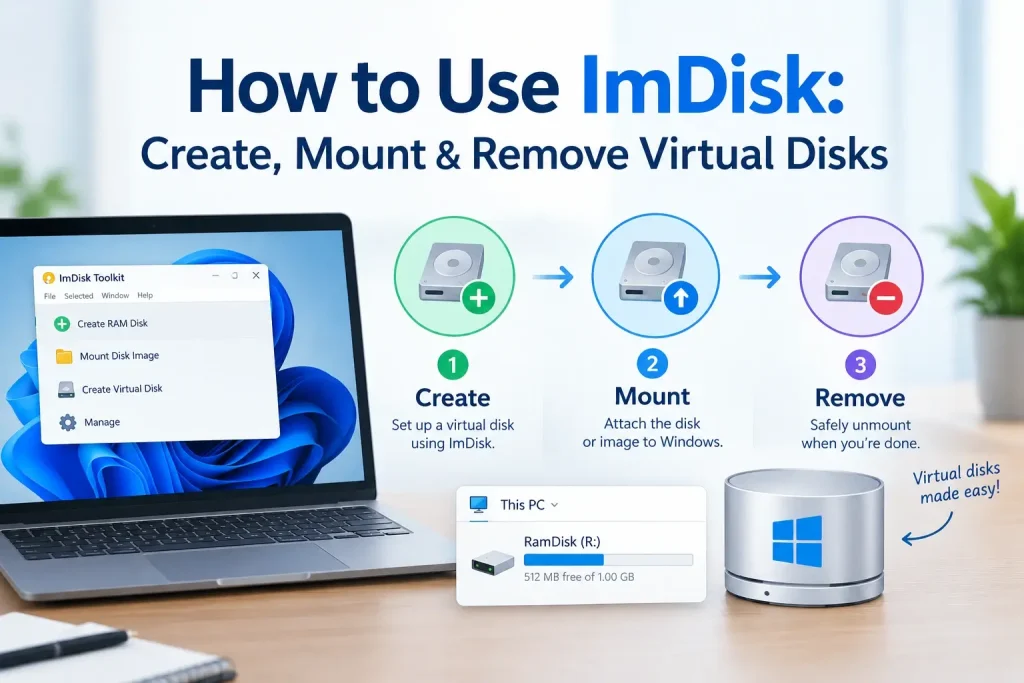
ImDisk is a Windows virtual disk driver that lets you create virtual drives, mount disk image files, and use system memory as a RAM disk. You can control it through Windows graphical tools or with the imdisk.exe command-line utility.
This guide explains how to use ImDisk from start to finish, including how to create a virtual disk, mount an image, make a RAM-backed drive, view ImDisk devices, unmount a virtual disk, and troubleshoot common problems.
The instructions are written for users who want practical steps without having to understand every low-level storage concept first.
What Is ImDisk?
ImDisk Virtual Disk Driver is software that creates virtual storage devices inside Windows.
Instead of requiring a physical hard drive, USB drive, or optical disc, ImDisk can create a virtual volume backed by an image file, computer memory, or another data source.
Windows can assign that virtual device a normal drive letter such as R: or V:, allowing you to work with it through File Explorer and many standard Windows applications.
Common uses include creating RAM disks, mounting disk images, testing file systems, accessing image files as drives, and creating temporary storage for development or technical work.
The core ImDisk package includes the imdisk.exe command-line utility as well as the imdisk.sys kernel driver.
Quick Answer: How Do You Use ImDisk?
The basic ImDisk workflow is straightforward.
You install the ImDisk driver, open its graphical interface or Command Prompt, create or mount a virtual device, assign it a drive letter, use the drive normally, and then remove the virtual device when you are finished.
For example, a simple RAM-backed virtual disk can be created from the command line with:
imdisk -a -s 1G -m R:This tells ImDisk to create a new virtual disk with a size of 1 GB and assign it the drive letter R:.
A newly created disk may still need to be formatted before Windows can store files on it.
For example:
format R: /fs:ntfs /qWhen you are finished, the virtual drive can be removed with:
imdisk -D -m R:These commands illustrate the basic relationship between creating, using, and removing an ImDisk virtual disk.
How ImDisk Works in Windows
ImDisk creates a virtual storage device that Windows sees as a volume.
Depending on how you configure it, that volume can be backed by system RAM or by a disk image file stored on another drive.
This is important because ImDisk does not behave exactly like a complete physical hard disk emulator.
It primarily presents virtual volumes to Windows. Some modern applications that require physical-disk characteristics may therefore behave differently with an ImDisk device.
For simple RAM disks, image mounting, temporary storage, and many legacy workflows, however, the volume-based design can be useful.
Before You Start
Make sure ImDisk is installed correctly before trying the commands in this guide.
You should normally have access to:
imdisk.exe — command-line management utilityimdisk.sys — virtual disk kernel driver
ImDisk Control Panel interface — graphical configuration tool
Explorer integration — optional right-click mounting features
Administrative privileges may be required for creating, changing, or removing virtual devices.
Before experimenting with important disk images, keep a backup of the original file. Mounting an image as read-only is a good idea when you only need to inspect its contents.
How to Create an ImDisk Virtual Disk
One of the simplest ways to learn ImDisk is to create an empty virtual drive.
Open Command Prompt as Administrator and run:
imdisk -a -s 1G -m R:The command uses several important ImDisk options.
| Option | Meaning |
|---|---|
-a | Add or create a new virtual disk |
-s 1G | Set the virtual disk size to 1 GB |
-m R: | Mount the disk using drive letter R: |
After the device is created, Windows may report that the disk needs to be formatted.
You can format it as NTFS:
format R: /fs:ntfs /qOr use another Windows-supported file system if your use case requires it.
Once formatted, open File Explorer and you should see the new R: drive.
You can now create folders, copy files, and use the virtual volume much like another Windows drive.
How to Create an ImDisk RAM Disk
A RAM disk is a virtual drive stored in your computer’s system memory rather than on an SSD or hard drive.
The basic command is similar:
imdisk -a -s 2G -m R:This creates a 2 GB memory-backed virtual disk and assigns it to R:.
Then format it:
format R: /fs:ntfs /qAfter formatting, R: can be used as temporary high-speed storage.
A RAM disk may be useful for build files, disposable test data, temporary extraction folders, scratch data, or other workloads where persistence is not required.
Important RAM Disk Warning
RAM is volatile memory.
Files stored only on a standard RAM disk normally disappear after the computer shuts down, restarts, crashes, or loses power.
Do not store your only copy of important files on a RAM disk.
Also avoid moving system-wide temporary directories to a RAM disk until you understand the compatibility consequences. Some applications expect temporary files to survive longer than a RAM-backed drive allows.
How to Mount a Disk Image With ImDisk
ImDisk can also create a virtual drive backed by an existing image file.
A typical command looks like this:
imdisk -a -f "C:\Images\disk.img" -m V:Here:
-a creates the virtual device.
-f specifies the image file.
-m V: assigns drive letter V:.
If the image contains a file system that Windows understands and the layout is compatible with direct volume mounting, you should be able to access it through File Explorer.
Mount an Image as Read-Only
When inspecting an image that you do not want to modify, use read-only mode:
imdisk -a -f "C:\Images\disk.img" -m V: -o roRead-only mounting helps protect the original disk image from accidental changes.
This can be especially useful when examining backups, recovery images, archived disks, or forensic data.
What Does “Mount as ImDisk Virtual Disk” Mean?
After installing the standard ImDisk integration, Windows Explorer may provide a context-menu option called:
Mount as ImDisk Virtual Disk
This lets you mount a compatible image through the graphical interface instead of typing an imdisk.exe command manually.
The basic workflow is to right-click the supported image file, select the ImDisk mounting option, choose the required settings, and assign an available drive letter.
Once mounted, the image can appear in File Explorer like another Windows drive.
The ImDisk installation can also provide related Explorer actions for unmounting an ImDisk virtual disk and saving disk contents to an image file.
This graphical workflow is generally easier for beginners than using the command line.
How to Use ImDisk From the Graphical Interface
You do not have to use ImDisk commands for every task.
The standard ImDisk installation includes a Control Panel interface that can create and manage virtual devices.
From the graphical tool, you can typically choose the backing source, specify the virtual disk size, assign a drive letter, configure media-related options, and attach or remove the device.
This is useful when you want to understand what each option does before creating command-line scripts.
Once you become comfortable with the settings, imdisk.exe can be faster for repeated tasks.
Essential ImDisk Commands
The imdisk.exe utility provides direct command-line control over virtual devices.
These are some of the most useful command patterns for beginners:
| Task | Example |
|---|---|
| Create a 1 GB virtual disk | imdisk -a -s 1G -m R: |
| Create a 4 GB virtual disk | imdisk -a -s 4G -m R: |
| Mount an image file | imdisk -a -f "C:\Images\disk.img" -m V: |
| Mount image read-only | imdisk -a -f "C:\Images\disk.img" -m V: -o ro |
| Remove drive R: | imdisk -D -m R: |
| Show ImDisk help | imdisk |
The exact options you need depend on the type of image, filesystem, offsets, media type, and backing method.
Running:
imdiskwithout normal device parameters displays the utility’s command syntax and available options.
That built-in help is useful when working with advanced configurations.
How to List ImDisk Virtual Disks
When you have several virtual devices mounted, it is useful to identify which ones are controlled by ImDisk.
The command-line utility provides query functionality for installed ImDisk devices.
Because command behavior can vary depending on exactly what you want to query, check the built-in syntax first:
imdiskYou can then use the appropriate query or device-selection options shown by your installed version.
For routine use, the ImDisk graphical interface also provides an easier way to view and manage active virtual devices.
How to Remove an ImDisk Virtual Disk
When you no longer need a virtual drive, remove it cleanly rather than simply deleting files associated with it.
For drive R:, use:
imdisk -D -m R:Before removing the device, close programs and File Explorer windows that are using it.
If files on the disk are still open, Windows or ImDisk may refuse to detach the volume.
For a RAM disk, remember that removing the device normally destroys its in-memory contents.
For an image-backed disk, make sure any required changes have been written before unmounting.
Remove vs. Force Remove
It is safer to perform a normal removal whenever possible.
A forced removal can disconnect a virtual disk even while something still has it open, which increases the risk of incomplete writes or corrupted data.
Use force-related options only when you understand why the normal removal failed and have confirmed that important writes are not still pending.
For regular users, closing applications and trying the standard removal command again is usually the better first step.
How to Choose a Drive Letter
ImDisk can mount a virtual disk using an available Windows drive letter.
For example:
-m R:assigns R:.
You can use another free letter such as:
-m V:or:
-m X:If your chosen drive letter is already assigned to another disk, USB device, optical drive, or network location, select a different one.
A missing or conflicting drive letter is one of the simplest reasons a newly created virtual disk may not appear where expected.
What File System Should You Use?
Creating a virtual disk and formatting it are separate operations.
ImDisk creates the device. Windows then needs a usable file system before most applications can store files on the new volume.
For a typical modern Windows-only virtual disk, NTFS is often a practical choice.
Example:
format R: /fs:ntfs /qFor removable or cross-platform workflows, another format such as exFAT may sometimes make more sense.
The correct file system depends on your intended use, required file sizes, compatibility needs, and whether the virtual disk is temporary.
How Large Should an ImDisk RAM Disk Be?
The answer depends on how much physical RAM your computer has and what applications you run.
A RAM disk permanently reserves memory while it is active, reducing the amount available to Windows and other programs.
For example, creating an 8 GB RAM disk on a machine with only 16 GB of memory can leave much less RAM available for applications.
Choose a size based on the actual workload rather than making the RAM disk as large as possible.
For simple testing, 512 MB, 1 GB, or 2 GB may be enough.
Development workloads, temporary archives, or large caches may require more.
ImDisk Virtual Disk vs. Physical Disk
An ImDisk virtual volume is not identical to a real SSD or hard drive.
A physical disk has hardware-level properties and normally participates in Windows storage management as a complete disk device.
ImDisk’s traditional architecture focuses on virtual volumes.
This means applications that expect features such as complete disk geometry, physical disk identification, partition management, or other hardware-style behavior may not work as expected.
If your software requires full physical-disk emulation, the ImDisk developer recommends considering a more modern solution such as Arsenal Image Mounter.
ImDisk vs. ImDisk Toolkit
The two names are often confused.
ImDisk Virtual Disk Driver is the core driver and command-line system.
ImDisk Toolkit is a separate collection of graphical utilities built around ImDisk that makes tasks such as RAM disk creation and image mounting more convenient.
If you prefer command-line control, automation, and direct access to the driver, core ImDisk may be sufficient.
If you prefer a graphical RAM disk configuration utility and additional image-handling workflows, ImDisk Toolkit may be easier to use.
The Toolkit project is separate from the underlying driver, so version numbers and maintenance status should not be assumed to be the same.
ImDisk on Windows 11
ImDisk can still work for some Windows 11 tasks, but users should understand its limitations.
The original project describes ImDisk as a legacy architecture and notes that modern Windows applications can expect physical-disk behavior that ImDisk does not provide.
This means basic RAM disks or image-backed volumes may work while a specific application still refuses to recognize or operate correctly with the virtual device.
Windows 11 users should test their intended workload before depending on ImDisk for important storage tasks.
If an application requires complete disk emulation, a newer alternative may provide better compatibility.
ImDisk on Windows 10 and Windows 7
ImDisk has a long history on older Windows releases.
Windows 10 and Windows 7 were among the environments associated with the project’s traditional use and testing.
For these systems, common workflows include RAM disks, image mounting, temporary virtual storage, testing, and command-line disk management.
Even on older Windows versions, however, application compatibility depends on what the program expects from the storage device.
Common ImDisk Problems
Several problems can occur when learning how to use ImDisk.
| Problem | What to Check |
|---|---|
| Virtual disk does not appear | Confirm that a drive letter was assigned and is free |
| Windows asks to format the disk | A new empty disk may not yet contain a filesystem |
| Image does not mount correctly | Check image format, partition layout, permissions and file integrity |
| Cannot remove the virtual disk | Close programs and files currently using the drive |
imdisk command is not recognized | Check whether ImDisk was installed and whether Windows can locate imdisk.exe |
| Program cannot detect the drive | The application may require physical-disk behavior |
| Files disappeared after reboot | RAM-backed storage is normally volatile |
| Access is denied | Try an elevated Command Prompt and check file permissions |
Why Does Windows Ask to Format a New ImDisk Drive?
This is normally expected when you create an empty virtual disk.
ImDisk provides the virtual storage device, but an empty device may not contain a filesystem.
Windows therefore sees unformatted storage and asks whether you want to format it.
For example:
format R: /fs:ntfs /qcreates an NTFS filesystem on the virtual drive.
Do not format a mounted disk image if it already contains important data and Windows unexpectedly reports it as unformatted. That warning may indicate that the filesystem, partition offset, or image format is not being interpreted correctly.
Why Won’t My Image File Mount?
Not every image can be mounted by specifying the image file alone.
Some images represent an entire physical disk containing a partition table rather than a single filesystem volume.
In those cases, the filesystem may begin at an offset inside the image.
Advanced ImDisk options can work with offsets and image geometry, but you need to know how the image is structured before choosing those settings.
If you are unsure, avoid experimenting on your only copy of the image. Work with a backup and consider mounting it read-only first.
Is ImDisk Safe to Use?
ImDisk is an established open-source project, but it is still kernel-level storage software.
That means you should treat it with the same care you would use with other device drivers.
Use trusted project sources, keep backups of important data, use current versions where practical, and avoid forcing disk removal while data is being written.
ImDisk itself is not a backup system.
A virtual disk can fail, disappear, become corrupted, or lose data just like other forms of storage, and RAM-backed data has the additional risk of being volatile.
Best Practices for Using ImDisk
For reliable everyday use, follow a few simple habits:
- Download ImDisk from a trusted project source.
- Run storage-management commands with administrative privileges when required.
- Test new configurations with non-critical data.
- Mount important disk images as read-only when you only need to inspect them.
- Never keep your only copy of important files on a RAM disk.
- Close applications before removing a virtual device.
- Keep backups of image files before making changes.
- Check Windows and application compatibility before using ImDisk for important workflows.
- Avoid blindly copying command examples when you do not understand the image layout or device being modified.
- Use the built-in
imdiskhelp output when working with advanced command options.
Frequently Asked Questions
How do I use ImDisk?
Install ImDisk, open its graphical interface or an elevated Command Prompt, create or mount a virtual disk, assign a drive letter, format a new empty disk if necessary, and then access it through File Explorer. Use imdisk.exe when you want command-line control.
How do I create an ImDisk virtual disk?
A simple command is:
imdisk -a -s 1G -m R:This creates a 1 GB virtual disk on drive R:. A new empty disk will normally need to be formatted before storing files.
How do I create an ImDisk RAM disk?
Create a memory-backed device with:
imdisk -a -s 2G -m R:Then format the new volume before using it.
How do I mount an image with ImDisk?
A common pattern is:
imdisk -a -f "C:\Images\disk.img" -m V:The image must have a layout and filesystem compatible with the way you are mounting it.
How do I mount an ImDisk image read-only?
Use:
imdisk -a -f "C:\Images\disk.img" -m V: -o roRead-only mode helps protect the original image from accidental modification.
How do I remove an ImDisk virtual drive?
Use:
imdisk -D -m R:Replace R: with the drive letter of the virtual disk you want to remove.
What does imdisk.exe do?
imdisk.exe is the command-line management utility for ImDisk. It creates, configures, queries, and removes virtual devices.
What is imdisk.sys?
imdisk.sys is the Windows kernel driver that provides ImDisk’s core virtual disk functionality.
Can ImDisk mount ISO files?
ImDisk can work with optical-style image scenarios, but the exact mounting workflow depends on the image and the components installed. ImDisk Toolkit may provide a more convenient graphical workflow for multiple image types.
Can ImDisk create a persistent RAM disk?
A plain RAM-backed device is volatile. Persistence requires an additional process that saves data to persistent storage and restores it later.
Does ImDisk work on Windows 11?
It can work for some workloads, but modern Windows has documented compatibility limitations with ImDisk’s older volume-emulation architecture. Test the exact application and workflow you plan to use.
Is ImDisk Toolkit required?
No. The standard ImDisk driver can create and manage virtual devices on its own. Toolkit mainly adds graphical conveniences and additional workflows.
Why does my ImDisk drive disappear after restart?
If the virtual disk is RAM-backed and is not recreated automatically, disappearing after restart is expected. RAM contents are volatile and the virtual device itself may need to be created again during startup.
Final Thoughts
Learning how to use ImDisk is easiest when you start with a small test drive.
Create a simple virtual disk, assign a drive letter, format it, copy a few test files, and then remove it cleanly. Once you understand that workflow, image mounting and RAM disk configuration become much easier to follow.
For command-line users, the three most important concepts are simple:
imdisk -acreates or attaches a device.
imdisk -fspecifies an image file when one is being used.
imdisk -Dremoves a mounted virtual device.
ImDisk remains useful for virtual volumes, RAM disks, disk image access, testing, and specialized Windows storage tasks. Its older architecture does have limitations on modern Windows, so the right approach is to use it where its volume-based design fits the job and choose a full-disk emulator when an application requires physical-disk behavior.